
Shirely
Import and export WooCommerce and WordPress data with CSV or Google Sheets, with optional WPML Matrix Mode.
Version 1.3.0 · PRO01 Installation
Getting Shirely running takes less than a minute.
Upload the plugin
In your WordPress admin go to Plugins → Add New → Upload Plugin. Select the shirely.zip file and click Install Now.
Activate
After installation finishes, click Activate Plugin. A new Shirely item appears in the admin sidebar menu.
Open the Dashboard
Navigate to Shirely → Dashboard. The welcome screen confirms your plugin is ready and shows system health checks.
After installation, go to Shirely → License and enter your license key to activate the plugin.
System Requirements
| Component | Minimum | Recommended | Notes |
|---|---|---|---|
| WordPress | 6.0+ | — | Tested up to 7.0 |
| PHP | 8.0+ | — | PHP 8.0 or newer is required |
| WooCommerce | 8.0+ | — | Tested up to 10.7; optional for WordPress content workflows |
| WPML | 4.5+ | — | Optional — required for Matrix Mode and multilingual workflows |
| PHP Memory | 512 MB | 512 MB+ | Dashboard health target; reduce Batch Size if memory errors occur |
| WordPress Memory | 256 MB | 256 MB+ | Dashboard health target for WP_MEMORY_LIMIT |
| Execution Time | 60 seconds or unlimited | — | Dashboard health target; the server can enforce its own limit |
WooCommerce and WPML are not required for basic functionality. The plugin works for standard WordPress posts and pages without either plugin installed.
01A Supported data types
Shirely 1.3.0 imports and exports WooCommerce catalog data, WordPress content and selected store data from CSV or Google Sheets. WPML is optional: Matrix Mode adds multilingual workflows, while single-language imports and exports work without WPML. Automation can save supported import and export jobs for on-demand or scheduled runs.
| Area | Supported in 1.3.0 | Notes |
|---|---|---|
| Catalog | Products, variations, categories, terms and tags | WooCommerce is required for product-specific workflows. |
| WordPress content | Posts, pages and custom post types | CSV and Google Sheets workflows are available. |
| Store data | Orders, customers/users, coupons and reviews | All four can be imported and exported through WooCommerce-aware entity paths. |
| SEO and custom fields | Post meta through mapped meta_ columns |
Includes Yoast, Rank Math, custom post meta and simple ACF values stored as ordinary post meta. |
02 Dashboard Overview
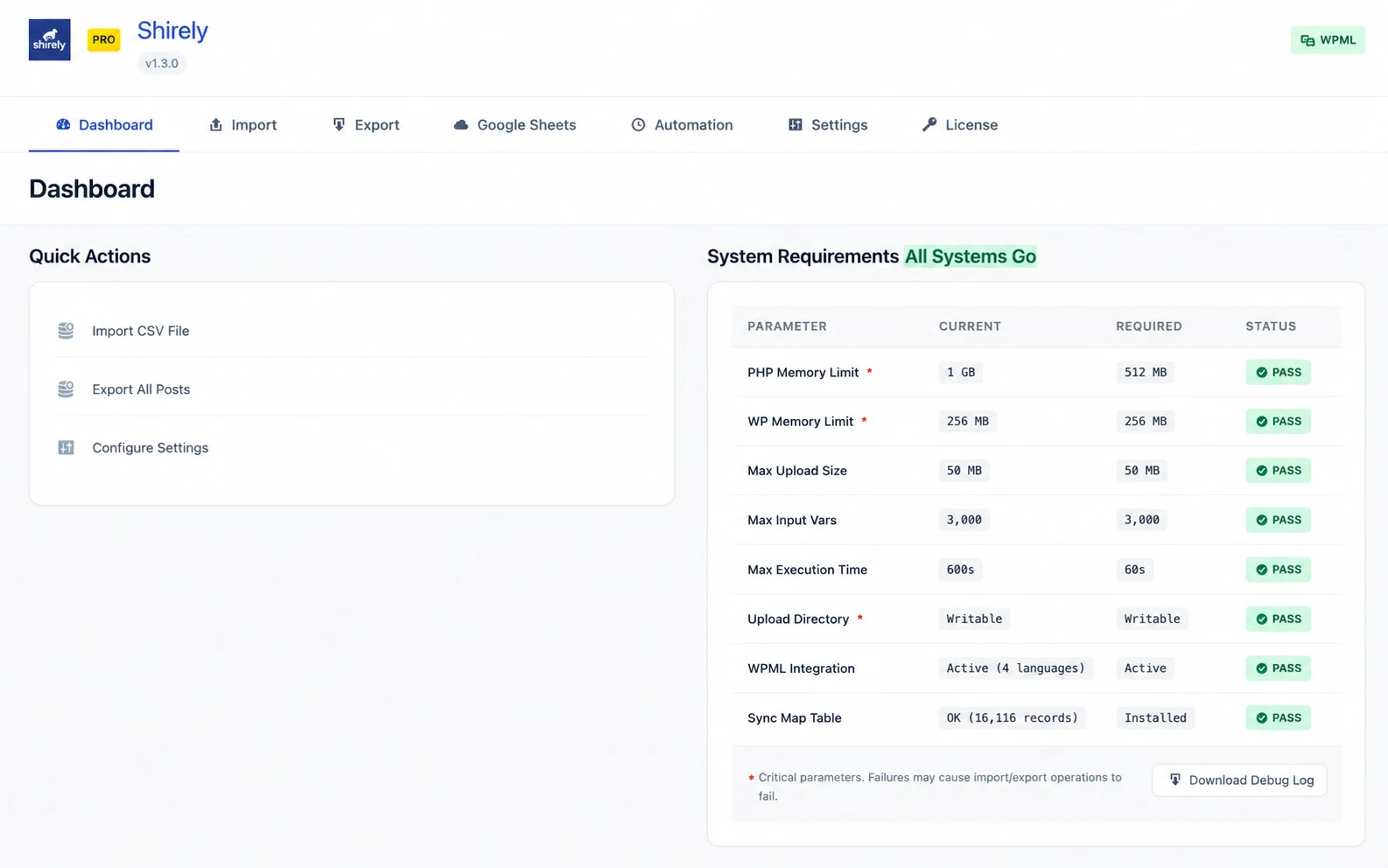
The Dashboard provides quick access to the primary workflows and an overview of the server checks used by Shirely.
The dashboard contains three main areas:
- Welcome banner — One-click buttons for Start Import and Start Export.
- Quick Actions — Shortcuts to Import CSV File, Export All Posts, and Configure Settings.
- System Requirements — A live table checking PHP memory, WordPress memory, upload limits,
max_input_vars, execution time, the upload directory, WPML status and the plugin database table.
03 Importing Data
The import wizard guides you through five steps: upload your file, map columns to WordPress fields, preview the changes, run the import, and review the results.
Step 1 — Upload File
Navigate to Shirely → Import. You will see the upload screen with a large drag-and-drop zone.
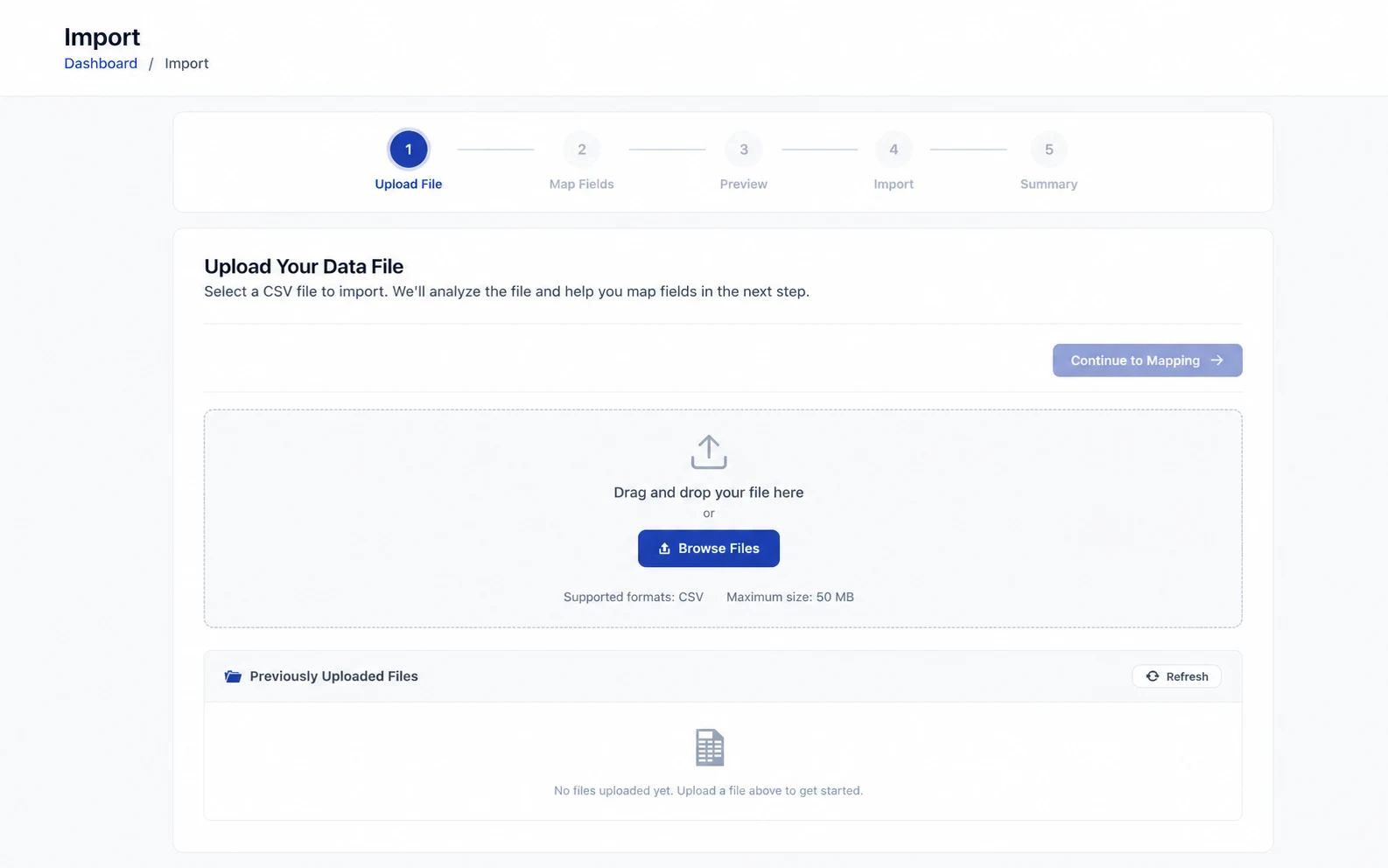
- Drag & drop your CSV file onto the zone, or click Browse Files to choose a file from your computer.
- Supported format: CSV (UTF-8 recommended). Maximum file size: 50 MB.
- Both comma (
,) and semicolon (;) delimiters are auto-detected. - Below the upload zone, a Previously Uploaded Files panel shows files from earlier sessions. Click Use File to reuse one without re-uploading.
Once the file is uploaded successfully, click Continue to Mapping →.
Step 2 — Map Fields
This is where you connect your CSV columns to WordPress/WooCommerce fields.
Import As
Select the content type from the dropdown. Post types come first — Products, Posts, Pages and any custom post type, plus Orders, Customers, Coupons and Reviews when WooCommerce is active — followed by a separator and the taxonomies, including Categories (product_cat), tags, and WooCommerce attribute taxonomies (pa_*).
Product Import Strategy
For product imports, the mapping screen provides these matching and existing-item options:
| Setting | Options |
|---|---|
| Import Mode | Create & Update (default), Only Create, or Only Update |
| Identifier Key | SKU or Matrix ID / External ID |
| Match products by | SKU, Matrix ID / External ID, Product ID, or Product Title |
| If product exists | Update existing product or Skip |
Import modes are not a substitute for a backup. Confirm the selected mode and matching key in Preview, then test a small sample before changing production data.
Field Mapping Table
Each row shows Source Column → WordPress Field → Sample Value. The Auto-Mapper automatically detects common column names like sku, title, regular_price, description, and stock_quantity.
WPML Language
When WPML is active, Shirely detects Matrix Mode automatically from language-suffixed headers such as title|en and title|pl. The mapping screen shows a Matrix Mode badge when this format is detected; there is no manual Matrix Mode toggle.
Check “Show advanced fields” to reveal additional mapping targets like slug, menu order, parent ID, and custom meta fields.
Step 3 — Preview
Before committing any changes, the preview screen breaks down what the import is expected to do. Five color-coded stats cards:
- Total Rows — number of data rows in your CSV
- Will Create (green) — new items to be created
- Will Update (blue) — existing items that will be modified
- Will Skip (gray) — unchanged records that will be skipped
- Errors (red) — rows with validation problems
Smart Sync Detection
Applies to posts, pages and custom post types imported with a mapped Record ID: records unchanged since the previous import are skipped automatically. Products, categories and Matrix Mode rows are always processed.
Confirmation Checkboxes
Before clicking Start Import you must confirm:
- “I have a recent backup of my database”
- “I understand that import may overwrite existing data”
- “I take full responsibility for the result”
Step 4 — Run Import
After clicking Start Import, the plugin processes your data in batches.
- A progress bar shows the current percentage.
- Real-time counters update as items are created, updated, skipped, or error.
- Processing happens in batches (default: 20 rows per request).
- Click Cancel at any time to stop further batches.
Resume carefully: rows completed before an interruption remain saved. Confirm the source file, matching key and current result before resuming, especially after changing the CSV.
If the import stalls or the progress bar stops moving, try reducing the Batch Size in Settings. The most common cause is a PHP timeout.
Step 5 — Summary
When the import completes, the summary screen shows:
- View [Items] — links to your imported content
- New Import — start a fresh import session
- Detailed stats — Status, Total Rows, Created, Updated, Skipped, Errors, Duration, Average Speed
- Copy Debug Info — copies diagnostic summary to clipboard
04 Matrix Mode (WPML)
What is Matrix Mode?
Matrix Mode lets you manage all language translations from a single CSV row. Instead of importing separate rows for each language, you add language-suffixed columns.
Traditional approach (3 languages × 100 products = 300 rows):
sku,name,price,language
SHIRT-001,Niebieska Koszula,29.99,pl
SHIRT-001,Blue Shirt,29.99,en
SHIRT-001,Blaues Hemd,29.99,de
Matrix Mode approach (100 products = 100 rows):
sku,name|pl,name|en,name|de,price
SHIRT-001,Niebieska Koszula,Blue Shirt,Blaues Hemd,29.99
One row creates or updates the product in all WPML languages simultaneously, with automatic TRID translation linking.
Matrix Mode requires WPML Multilingual CMS. It supports products, taxonomies, posts, pages and custom post types. WooCommerce Multilingual is optional; when present, Shirely can hand variation data to it for processing.
Category Sync
Matrix Mode imports all categories in every language from a single CSV and automatically synchronizes the hierarchy. Parent-child relationships, slugs, and WPML translation links (TRIDs) are all created in one pass.
slug,name|pl,name|en,name|de,parent_slug
narzedzia,Narzędzia,Tools,Werkzeuge,
wiertarki,Wiertarki,Drills,Bohrmaschinen,narzedzia
szlifierki,Szlifierki,Grinders,Schleifer,narzedzia
Why this matters: Most importers require you to import categories language-by-language, then manually link translations. Matrix Mode does it in one import.
Automatic WPML Hierarchy Synchronisation
When the import completes, Shirely calls WPML’s hierarchy synchronization once, after the full imported category tree is in place. This is the closing pass that mirrors parent-child relationships across the imported language versions.
- Automatic, post-import — triggered once on completion, not per-row (which would be unreliable mid-import when parent terms may not yet exist)
- Full tree coverage — the entire imported hierarchy is synced in a single pass
- One closing pass — hierarchy synchronization runs after all rows have been processed
Tag & Non-Hierarchical Taxonomy Matrix
Since v1.1.25, Matrix Mode also supports post tags and non-hierarchical taxonomies including WordPress post tags. A single CSV row imports tag translations across all WPML languages simultaneously.
WooCommerce global attributes (pa_*): The shared path is the default: use a plain pa_color column when every product language should use the same term. Shirely 1.3.0 can also use language-suffixed columns such as pa_color|en and pa_color|de when you explicitly enable Translate global attributes (WCML Matrix opt-in). This applies only to Product Matrix imports and only when the attribute taxonomy is already configured as translatable in the supported WPML/WCML stack. Shirely does not change that configuration for you; review any preflight warning and verify the terms and variations in every language.
sku,title|en,title|pl,post_tag|en,post_tag|pl,price
SHIRT-001,Blue Shirt,Niebieska Koszula,"summer,new","lato,nowość",29.99
Separate multiple tags with a comma inside the cell. Quote the cell in your CSV when it contains commas (as shown above).
| Column Header | Taxonomy |
|---|---|
post_tag|en |
WordPress post tags — English |
post_tag|pl |
WordPress post tags — Polish |
pa_color |
WooCommerce Color attribute terms — shared across all languages (no |lang suffix) |
Unlike category Matrix imports, tag imports do not require a parent column — tags and non-hierarchical taxonomies are always flat.
CSV Format
A Matrix CSV uses pipe-separated language codes in column headers. Any column with a |lang suffix is treated as a translatable field.
sku,title|en,title|pl,description|en,description|pl,price,stock_quantity
DRILL-100,Power Drill,Wiertarka,A powerful 18V drill,Mocna wiertarka 18V,149.99,25
Which fields can be translated
title|en— Product namedescription|en— Full descriptionshort_description|en— Short descriptionslug|en— URL slug
Fields like price, sku, stock_quantity, and weight are shared across languages.
Language Columns
| Column Header | Detected As | Language |
|---|---|---|
title|en |
Title | English |
title|pl |
Title | Polish |
title|de |
Title | German |
description|fr |
Description | French |
price |
Regular Price | Shared (no language) |
Language codes must match your WPML configuration exactly. Use en, not en_US.
05 Variable Products
CSV Structure
Variable products require a type column to distinguish between parent products, variations, and simple products.
| Type Value | Description |
|---|---|
variable |
Parent product |
variation |
Child variation |
simple |
Standalone product |
Parent & Variation Rows
Variations link to their parent via the parent_sku column. The parent row defines the variable product, and subsequent variation rows reference it.
type,parent_sku,sku,name,price,pa_color,pa_size
variable,,TSHIRT,T-Shirt,,,
variation,TSHIRT,TSHIRT-RS,T-Shirt Red S,29.99,Red,Small
variation,TSHIRT,TSHIRT-RM,T-Shirt Red M,29.99,Red,Medium
variation,TSHIRT,TSHIRT-BS,T-Shirt Blue S,34.99,Blue,Small
variation,TSHIRT,TSHIRT-BM,T-Shirt Blue M,34.99,Blue,Medium
Row order matters. The parent row must appear before its variation rows in the CSV file.
Key Rules
- Each variation must have a unique
sku. - The
parent_skucolumn for variations must match the parent’sskuexactly. - The parent row’s
typemust bevariable. - Leave
parent_skuempty for parent and simple products. - Price, stock, and weight are set per variation, not on the parent.
Attributes
WooCommerce product attributes use the pa_ prefix in CSV column headers.
| Column Header | Attribute Name | Example Value |
|---|---|---|
pa_color |
Color | Red |
pa_size |
Size | Small |
pa_material |
Material | Cotton |
pa_voltage |
Voltage | 230V |
If a global attribute doesn’t exist yet, the plugin creates it automatically during import.
SEO & Meta Fields
A mapped CSV column prefixed with meta_ is written as WordPress post meta. This covers Yoast SEO, Rank Math, custom post meta and simple ACF values stored as ordinary post meta.
How it works
The meta key written to the database is the column header with the meta_ prefix stripped. For example, the column meta__yoast_wpseo_title writes to the meta key _yoast_wpseo_title.
sku,title,meta__yoast_wpseo_title,meta__yoast_wpseo_metadesc
SHIRT-001,Blue Shirt,Blue Shirt | My Store,The ultimate blue shirt for summer.
Yoast SEO field reference
| Column Header | Yoast SEO Field |
|---|---|
meta__yoast_wpseo_title |
SEO Title |
meta__yoast_wpseo_metadesc |
Meta Description |
meta__yoast_wpseo_focuskw |
Focus Keyword |
meta__yoast_wpseo_canonical |
Canonical URL |
meta__yoast_wpseo_opengraph-title |
Open Graph Title |
meta__yoast_wpseo_opengraph-description |
Open Graph Description |
Yoast stores its meta keys with a leading underscore (e.g. _yoast_wpseo_title). In your CSV header, add meta_ in front: meta__yoast_wpseo_title — note the double underscore after meta.
Rank Math field reference
| Column Header | Rank Math Field |
|---|---|
meta_rank_math_title |
SEO Title |
meta_rank_math_description |
Meta Description |
meta_rank_math_focus_keyword |
Focus Keyword |
meta_rank_math_canonical_url |
Canonical URL |
Other custom meta fields
The meta_ prefix works for any post meta key. For example, meta_my_custom_field writes to the my_custom_field meta key.
For ACF, provide the exact meta key. Shirely does not include dedicated handling for ACF field types or field definitions.
To find the exact meta key for a plugin field, use the Custom Fields panel at the bottom of the WordPress post editor (enable it under Screen Options if not visible).
06 Exporting Data
Standard Export
Select Content Type
Navigate to Shirely → Export and choose the content type you want to export. The dropdown lists post types — Products, Posts, Pages and custom post types, plus Orders, Customers, Coupons and Reviews when WooCommerce is active — followed by a separator and the hierarchical taxonomies (Categories, Product Categories).
Apply Filters
Optionally narrow a post-type export by status, category or taxonomy, date range, and WPML language. When a taxonomy is selected as the content type, these filters are hidden because they do not apply to term exports.
Choose Fields
Select which fields to include in the export. Use “Select All” or pick individual fields. For taxonomy exports, taxonomy-specific fields are available: Term ID, Name, Slug, Description, Parent ID, Parent Name, Post Count, and (when WPML is active) Language and TRID.
Generate & Download
Click Export to generate the CSV. When processing completes, your browser downloads the file automatically.
Matrix Export
Matrix Export generates a WPML-aware CSV with language-suffixed columns for editing and later Matrix import. Three one-click export cards are available:
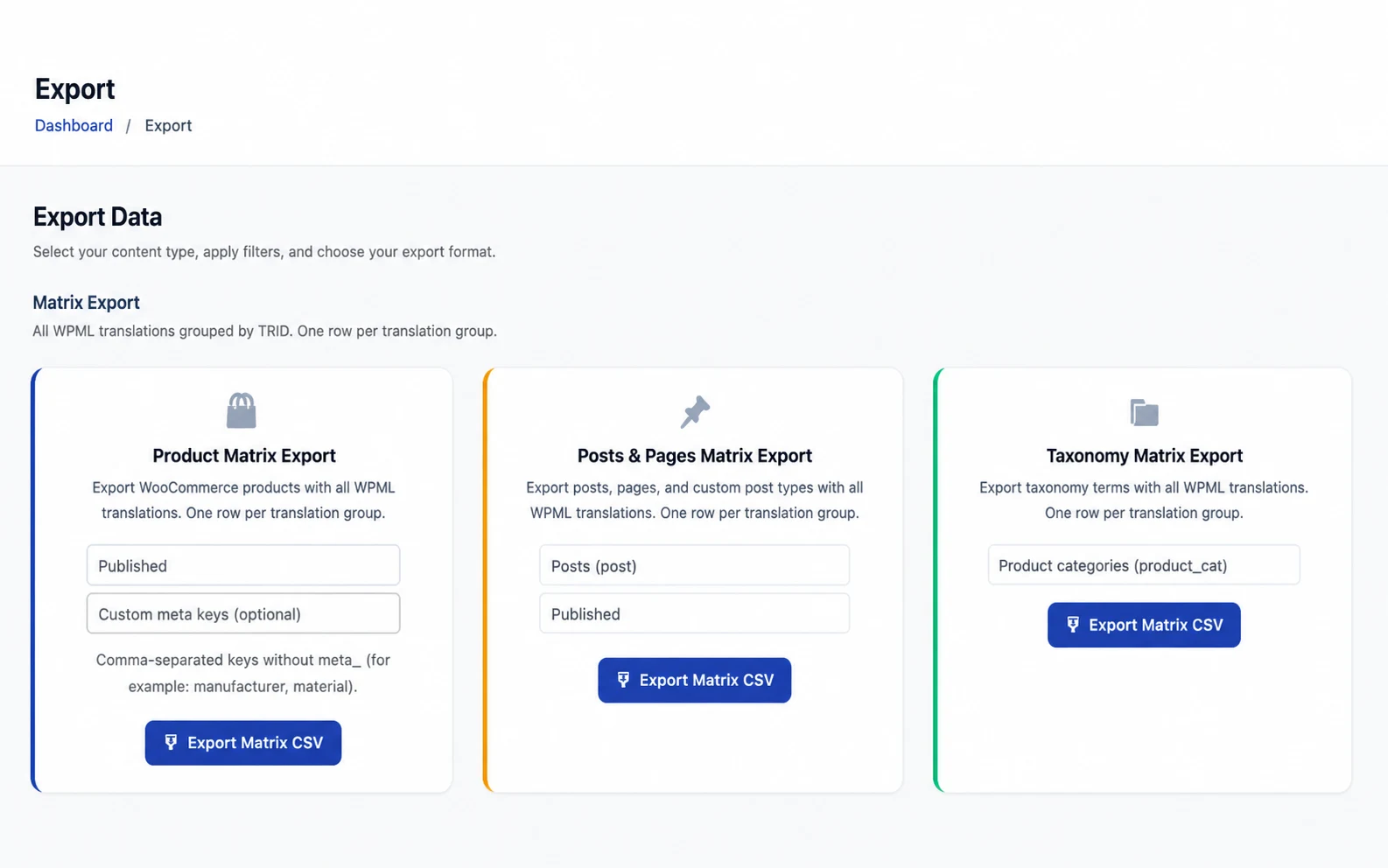
- Product Matrix Export — Exports all products with translations as pipe-separated language columns.
- Posts & Pages Matrix Export — Exports the selected post, page or custom post type with translations.
- Taxonomy Matrix Export — Exports the selected taxonomy with translations and hierarchy data where applicable.
Before a full round trip, test a small export and re-import with stable identifiers and the intended import mode. Product IDs are local to one WordPress database; use SKU when moving products between stores.
Taxonomy round-trip safety: back up first and validate a small sample with stable source and parent source IDs before re-importing a complete Matrix taxonomy.
Filters & Fields
| Filter | Description |
|---|---|
| Status | Limit a post-type export by WordPress or WooCommerce status |
| Category / Taxonomy | Limit the export to the selected term where the content type supports it |
| From Date / To Date | Limit by the available date range |
| WPML Language | Limit the export to one language when WPML is active |
| Export All Meta | Field option that includes custom fields; it is not a filter |
Taxonomy exports: When exporting a taxonomy (Categories, Tags, etc.), filters like Status, Category, Date Range, and Export All Meta are not applicable and are hidden automatically. The available fields change to taxonomy-specific ones: Term ID, Name, Slug, Description, Parent ID/Name, Post Count, and WPML Language/TRID.
07 Google Sheets
Shirely can import from and export to Google Sheets using your own Google Cloud service account. The Google Sheets page provides deliberate, on-demand runs; Automation can schedule supported imports and catalog exports. Neither workflow is a live or two-way connection.
Setup is a one-time process: create a service account in Google Cloud, connect it to Shirely, and share each sheet you want to use with that account.
For a task-oriented overview of both directions, see connecting WooCommerce with Google Sheets.
Step 1 — Create a service account in Google Cloud
Go to console.cloud.google.com and create a new project, or select an existing one.
Open APIs & Services → Library and enable the Google Sheets API.
Open IAM & Admin → Service Accounts, click Create service account, name it, and create it.
You do not need to grant the service account any project-level role. It only accesses the individual sheets you explicitly share with it.
Open the service account → Keys tab → Add key → Create new key → JSON. A .json file downloads — this is your credential.
Keep this JSON file private. You can delete and regenerate keys anytime from the same screen.
Step 2 — Connect the key to Shirely
In WordPress, go to Shirely → Settings and find the Service Account Credentials field.
Choose your .json key file. There is no separate upload button — Shirely uploads and validates it as soon as you select it, then stores it encrypted in your database (the private key is never written to a web-accessible file). You’ll see Credentials loaded.
Shirely shows the service account email (ends in @….iam.gserviceaccount.com). Copy it — you’ll share your sheets with this address.
Under Connection Status, click Test Connection. On success you’ll see Connected as …
Step 3 — Share your sheet with the service account
A service account is a separate Google identity. It only sees sheets shared with it — just like sharing with a colleague.
Open the Google Sheet you want to use and click Share.
Paste the service account email. Use Viewer for an import-only sheet or Editor when Shirely must export to it.
If a read or write returns 403, verify that the exact sheet is shared with the displayed service account email and that its permission matches the operation.
Step 4 — Import and export
Open Shirely → Google Sheets. Once a credential is connected you will see the service account email and connection status.
Import — choose an import card, save the sheet URL and range, then run that saved import slot. Matrix headers are detected automatically.
Export — choose an export card, save its destination sheet and range, then run that export slot. Product, post/page/CPT, taxonomy and store-data cards are separate.
Saved slots: what is stored and refreshed
Save a sheet once, then use that slot for later imports or exports. The slot stores the sheet URL, range and content type. Import and export use separate slots and separate actions.
Every time you run a saved import slot, Shirely fetches the current values from the saved range, reads the current headers and derives the mapping again. The mapping captured when the slot was first saved is not reused for the run.
If you rename the sheet tab, update the saved range before the next run. Shirely does not automatically select a renamed tab.
08 Automation
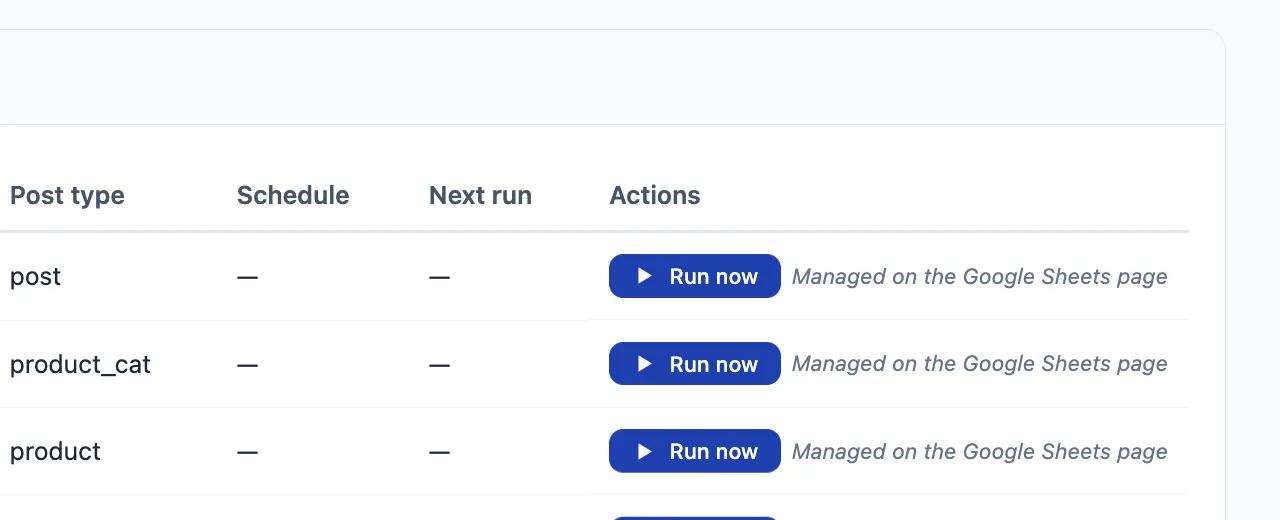
Automation in Shirely 1.3.0 turns a repeatable import or catalog export into a saved slot. A slot stores the source or destination plus the settings needed for that job. You can run it deliberately with Run now, leave it manual, or assign one of the standard WP-Cron schedules.
Open Shirely → Automation. Import slots and export slots are separate because they store different fields and use different execution paths.
Create or edit an import slot
- Under Import slots, open Add / edit import slot.
- Enter a unique slot key. Saving another definition with that key updates the existing slot.
- Choose the source type: Google Sheets, Remote CSV URL, or Inbox.
- Enter the source. A remote CSV must be publicly reachable over HTTP(S). An inbox source is a bare
.csvfilename inside Shirely’s protected drop directory. - Choose the target post type or taxonomy and, for a non-Matrix import, the language. Matrix headers carry their own languages.
- Leave the schedule at Manual runs only, or choose Hourly, Twice daily, or Daily.
- Save the slot, then review its row before the first run.
Saving a slot does not run it. A scheduled slot’s first WP-Cron event is due one full interval after it is saved. Use Run now when you want an immediate, deliberate first run.
Source-specific fields appear only when they apply. Google Sheets adds a sheet URL and tab/range; Remote CSV uses a public URL; Inbox uses a filename from the protected drop directory. The post type, taxonomy, language and Matrix options also change which configuration fields are relevant.
Create or edit an export slot
- Under Export slots, open Add / edit export slot.
- Enter a unique slot key and choose a supported catalog entity: products, product categories, or posts/custom post types.
- Enter the destination Google Sheet URL and optional tab/range.
- Choose a manual or WP-Cron schedule and save the slot.
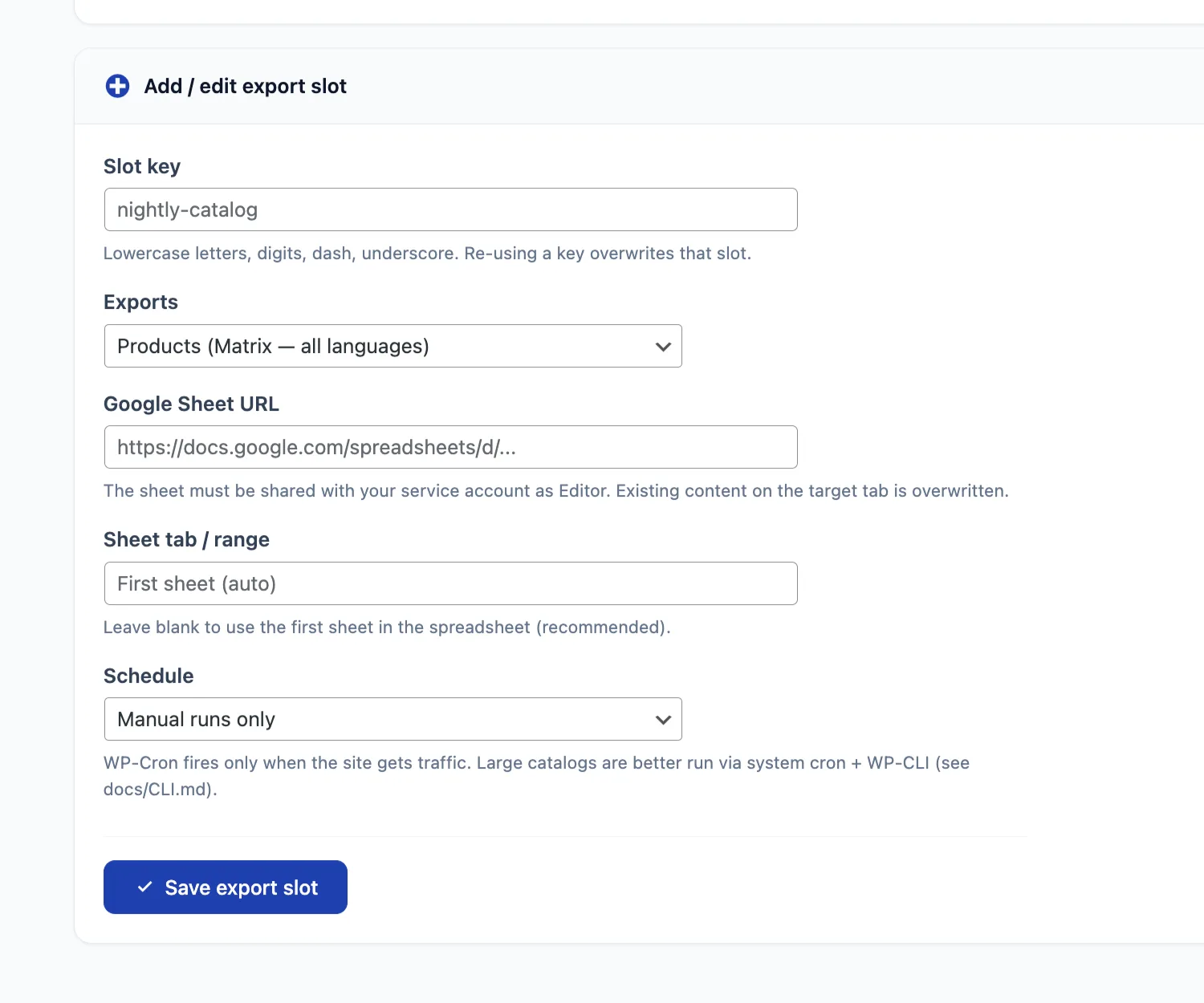
Automated export in 1.3.0 publishes to Google Sheets. The target sheet must be shared with the configured Service Account as Editor. Scheduled export is limited to supported catalog data; orders, customers, coupons, reviews and subscriptions remain deliberate manual exports.
Run now and schedules
Run now starts the selected slot through the same headless import/export pipeline used by WP-Cron and WP-CLI. Each slot is one complete run: it is not split into independently scheduled sub-jobs. Shirely’s Batch Size, memory and execution-time settings also apply to Automation.
| Schedule | Meaning | Timing note |
|---|---|---|
| Manual runs only | The slot runs only when you choose Run now or call it through WP-CLI. | No WP-Cron event is scheduled. |
| Hourly | Due once per hour. | WP-Cron may start it later on a quiet site. |
| Twice daily | Due twice per day. | This is an interval, not a guaranteed wall-clock time. |
| Daily | Due once per day. | The actual start still depends on WP-Cron being triggered. |
Use Run History as the completion gate
Do not treat a click, cron event or started request as proof that the job finished. Check Run History after every important run. It records the slot, direction, trigger, start time, status, created/updated/skipped/error counts and available details.
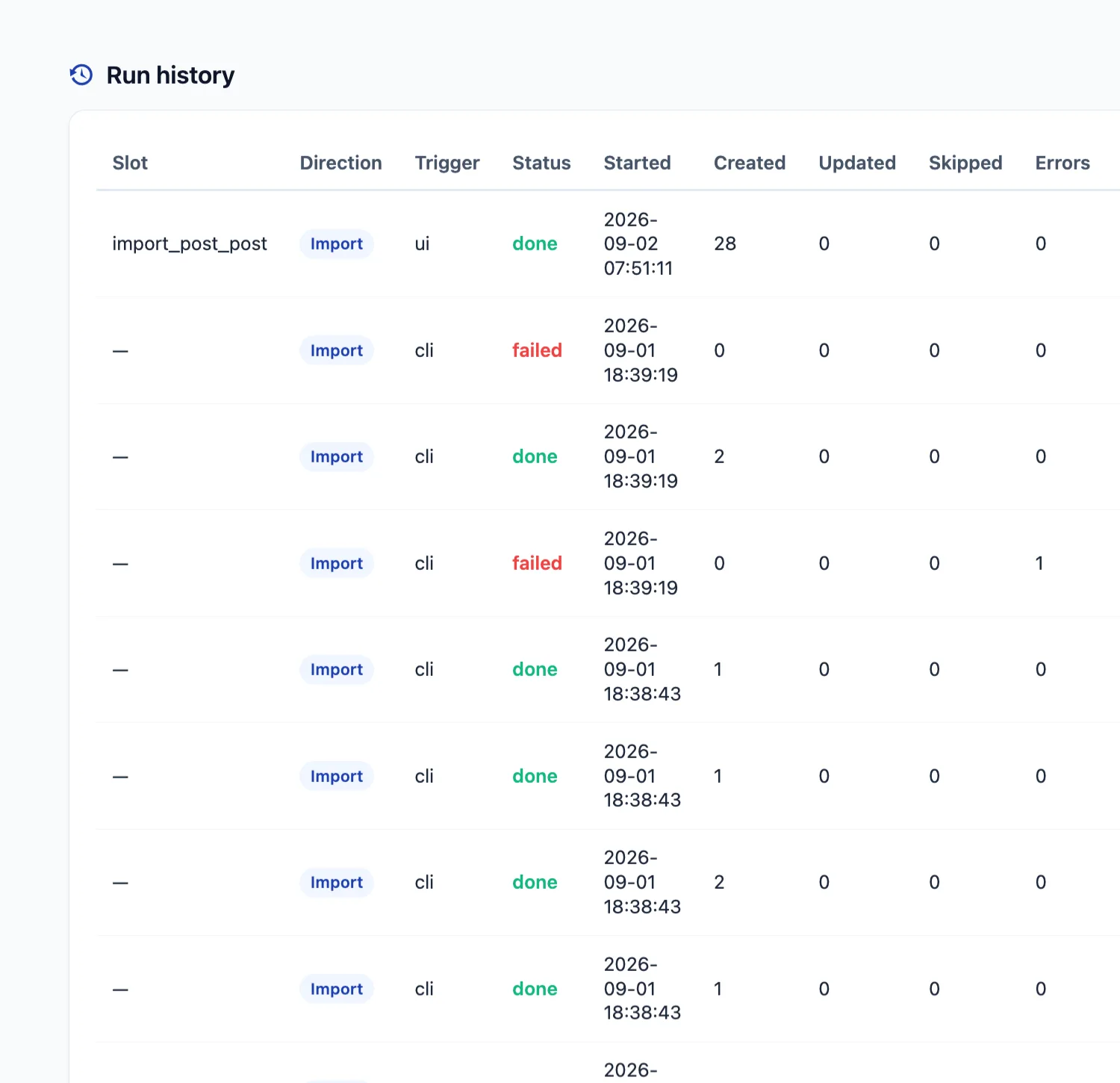
| Status | Interpretation | Next action |
|---|---|---|
running | The worker or a durable Google Sheets publish is still active. | Wait and refresh history; do not start an overlapping data-changing run. |
done | The run reached its completed state. | Review counts and verify the affected store or sheet. |
failed | The run stopped with an error, including failures before any row was imported. | Read Details, verify partial effects, correct the cause, then decide whether to retry. |
skipped | The same slot was already running, so the overlapping attempt did not take over its lock. | Wait for the active run and confirm its final status. |
After a failure, first inspect the error detail and the destination. Imports can save completed rows before a later error, and a Google Sheets publish can have its own durable state. Do not repeatedly click Run now. Confirm whether the previous run finished, correct the source, credentials, permissions or server condition, and test a small run before resuming production work.
WP-Cron limits and the WP-CLI alternative
WP-Cron is traffic-driven. On a low-traffic site, an hourly, twice-daily or daily slot can start later than expected. It is not a precise scheduler, and a long slot still runs as one cron event that can meet host request limits.
For large imports or jobs that must start at a predictable time, use system cron with WP-CLI. A system administrator can either run due WordPress cron events or call the Shirely slot directly:
*/5 * * * * wp --path=/path/to/wordpress cron event run --due-now
0 3 * * * wp --path=/path/to/wordpress shirely slot run nightly-catalog
The direct wp shirely slot run <slot-key> form avoids a PHP web-request time limit and still writes the run result to Run History.
Headless safety: Automation and WP-CLI do not run the destructive delete_non_matching option. They also do not send customer invite emails. The optional invite is available only for newly created customers in a manual wizard import.
Plan WPML/WCML-writing imports sequentially
Rare overlap precaution: do not run the wizard, Automation, WP-CLI or WP-Cron at the same time when those runs may modify the same products, terms or WPML/WCML translation groups. The same-slot lock and same-target Google Sheets protection are not a global lock for every import. Schedule these jobs sequentially and confirm the previous run has finished in Run History before starting the next one.
This warning is about avoiding an unusual overlap between separate data-changing runs. A normal single import, started after the previous one has completed, is the intended workflow.
09 Settings
Performance & Safety
| Setting | Default | Description |
|---|---|---|
| Batch Size | 20 | Number of rows processed per AJAX request. Higher values are faster but use more memory. |
| Request Delay | 500 ms | Pause between batches. Reduces server load on shared hosting. |
| Memory Limit Override | On | Attempts to raise the PHP memory limit during import and export. A server can ignore this request. |
| Target Memory Limit | 512 MB | Requested limit when Memory Limit Override is enabled. |
| Execution Time Limit | Unlimited | Maximum execution time requested per batch; the server can enforce its own limit. |
Start with the defaults and change one setting at a time. Raise Batch Size only when the server has memory headroom; lower it after memory errors or timeouts. Request Delay reduces load between batches.
These performance settings apply to the import wizard and to Automation. A schedule does not bypass the server’s memory, PHP execution or web-request limits.
Data Maintenance
| Setting | Default | Description |
|---|---|---|
| Debug Logging Level | Errors Only | Controls how much information Shirely writes to its debug log. |
| Log Retention | 7 days | Keeps log entries for 1 to 90 days before cleanup. |
| Reset Sync Map | Manual action | Clears sync-tracking data without deleting posts. Back up first: later imports can create duplicates instead of updating previously tracked posts. |
| Clear Debug Logs | Manual action | Deletes the Shirely debug log entries. |
Import Defaults
Two optional defaults for newly created items. Both apply only when the CSV row does not supply the value itself.
| Setting | Default | Description |
|---|---|---|
| Default Post Status | Plugin defaults | Status applied to newly created items when the CSV has no post_status column. Left at the default: products are published, posts are drafts. A post_status column in the CSV always wins, and updates never restatus existing items. |
| Default Author | WordPress default | Author assigned to items created by an import when the row supplies none. Applies on creation only — re-importing never rewrites the author of an existing item. |
WPML behaviour is not configurable, by design. Translation links (TRIDs) are always created during a Matrix import, and the default language comes from WPML itself. To copy non-translatable fields (price, stock, weight) from the default language to its translations, tick Sync Core Data in step 3 of the import wizard — it applies to product imports only.
10 Troubleshooting
“Parent ID not yet imported — saved as root item. Will link when parent is imported.”
A child category appeared before its parent row. Shirely temporarily saves it at the root and runs a closing hierarchy pass after processing the file. Verify the resulting tree in every language when the import completes.
“Matrix ID is missing; update matching will be skipped for this row.”
The row has no Matrix Source ID mapped, so Shirely cannot match it through the internal _mie_ref_id. Product matching may still use the configured SKU, Product ID or Product Title strategy. For repeatable cross-store product imports, use a stable SKU.
“Matrix source ID is missing; _mie_ref_id will not be saved for this row.”
No source reference ID was found, so the internal _mie_ref_id value will not be saved for this item. Check the selected matching strategy before a later re-import.
“Matrix source ID was not mapped; using the raw file value.”
The source ID column was found in the file but was not explicitly mapped. Shirely uses the raw file value for this reference; verify that the value is the intended stable identifier.
“Product already exists; skipped due to ‘Only Create’ mode.”
You selected Only Create in the mapping screen. Shirely found a matching product and skipped it. Select Create & Update for a run that should update matched products.
“⚠️ LANGUAGE MISMATCH” banner
Your WordPress admin panel language flag (top bar) does not match the language you selected in the import wizard. This can cause products to be created in the wrong language context in WPML. Click the language flag in the top-right corner of the admin bar and switch it to match your import language, then re-start the import.
“Term X has no [language] translation (TRID Y), using [fallback] fallback”
A product is being assigned to a category that has no translation in the target language. Shirely falls back to the default-language term. Create the missing WPML translation, then back up and test the corrected assignment on a small sample before a wider taxonomy re-import.
“Term X has no [language] translation; strict_language prevents fallback”
Same situation as above, but Strict Language mode is active, which disables the fallback. The product will not be assigned to that category for the missing language. Create the category translation in WPML and re-import to resolve.
“Multiple terms match meta key/value — using lowest term_id”
Two or more categories share the same lookup value (e.g. the same external ID or slug). Shirely picks the one with the lowest database ID (the oldest) and continues. To avoid ambiguity, ensure each category has a unique identifier in your source data.
Import Issues
Import stuck at 0%
This usually indicates a server timeout or a conflict with another plugin. Try these steps:
- Reduce the Batch Size in Shirely → Settings to 5.
- Increase the Request Delay to 1000 ms.
- Check the Dashboard system-health result for
max_execution_time; Shirely’s health target is 60 seconds or unlimited. - Temporarily deactivate other plugins to rule out conflicts.
Products created but no translations
Matrix Mode is detected automatically. Verify that WPML is active and that the headers use pipe-separated language suffixes (for example title|en and title|pl) matching the language codes configured in WPML. The mapping screen should show the Matrix Mode badge.
Variable product has no variations
Check that the parent row appears before its variation rows in the CSV. Verify the parent_sku value in each variation row matches the parent’s sku exactly. Also confirm that the type column contains variable for the parent and variation for each child.
Export Issues
Export file is empty
Verify that your selected content type has published items. Check that your filters are not too restrictive. Try exporting without any filters to confirm the export engine is working.
WPML Issues
“WPML not detected” message
Multilingual features — Matrix Mode, translation linking, language columns — require WPML Multilingual CMS (the core plugin) to be active; the rest of Shirely works without it. If you have WPML installed but not activated, go to Plugins and activate it. Ensure you are running WPML version 4.5 or higher.
Translations are not linked
Translation linking runs during a Matrix import; there is no setting to enable it. Check that WPML is active, the mapping screen showed the Matrix Mode badge, and the headers use the exact WPML language codes. Then verify the translation relationships in the relevant WordPress or WooCommerce edit screens and review the import log.
During category import you may see a message like:
Row 280 (ID 20885): Parent ID "30883" (lang: en) not yet imported — saved as root item. Will link when parent is imported.This happens when a child category appears before its parent row. Shirely temporarily stores the child at the root and applies parent links during the closing hierarchy pass.
If categories remain orphaned after the run, do not blindly re-import a full taxonomy export. Back up the database, verify the source and parent identifiers, and test the corrected import on a small sample first.
Debug Mode
For advanced troubleshooting, enable WordPress debug logging by adding the following to your wp-config.php:
define( 'WP_DEBUG', true );
define( 'WP_DEBUG_LOG', true );
define( 'WP_DEBUG_DISPLAY', false );
After enabling debug mode, reproduce the issue and check wp-content/debug.log for error messages. Shirely logs its operations with a [Shirely] prefix for easy filtering.
11 Known issues
Large WPML category trees on servers with short FastCGI timeouts
When WPML and WooCommerce Multilingual are active, a hierarchical Matrix import of product categories can complete its category writes but still show “Import Failed” in the browser if the server ends the request during WPML/WCML hierarchy reconciliation.
In Shirely’s MAMP regression environment, the same browser workflow passed at 5,000 total product_cat terms and failed at 6,000. This is a measured environment-specific range, not a universal category limit: the cost also depends on the existing category hierarchy and translation data. These figures are totals across all languages, not per-language counts.
Before retrying after a timeout, verify the imported categories and their translations. For this workflow, configure the web server’s FastCGI response budget above 30 seconds and test the full category tree on staging first. Increasing the browser-side request timeout alone does not override a shorter server-side FastCGI limit.
12 FAQ
What is Matrix Mode?
Matrix Mode is a WPML-powered import/export format that lets you manage all language translations in a single CSV row using pipe-separated language columns (e.g. title|en, title|pl). It dramatically reduces the number of rows needed for multilingual imports and automatically creates WPML translation links.
Do I need WPML to use this plugin?
No. WPML is required only for Matrix Mode and multilingual workflows. Without WPML, Shirely still imports and exports products, categories, terms, tags, posts, pages and custom post types through CSV or Google Sheets.
Do I need WooCommerce?
WooCommerce is required for products, variations, product attributes, orders, customers, coupons and reviews. Without WooCommerce, Shirely can still import and export posts, pages and custom post types.
Can I import and export orders, customers, reviews and coupons?
Yes. Shirely 1.3.0 includes import and export workflows for all four through dedicated WooCommerce-aware entity paths.
What file formats are supported?
The upload wizard supports CSV files, with UTF-8 recommended. Comma (,) and semicolon (;) delimiters are auto-detected. The plugin upload limit is 50 MB; split larger source files into smaller imports.
What happens after 12 months?
Renewal is optional. If you do not renew, the installed plugin continues working, while access to updates and email support ends. You can renew at 30% off the original first-year price.
Can I update existing products without creating duplicates?
Select the correct matching strategy and verify the result on a small sample. For product transfers between stores, a stable SKU is recommended. Matrix ID / External ID is available for Matrix workflows, while Product ID is local to one WordPress database. Shirely 1.3.0 exports catalog provenance to prevent a foreign store ID from being treated as a local ID, but the import mode alone is not a duplicate-prevention guarantee.
How many products can I import at once?
The upload limit is 50 MB per CSV file. The number of rows that complete successfully depends on the data, server resources, other plugins and Batch Size. For a large catalog, split the source into manageable files, start with the default Batch Size and verify each run.
My import is slow. How can I speed it up?
Start with the defaults and change one setting at a time. If the server has memory headroom, test a modest Batch Size increase on a small file. If you see timeouts or memory errors, reduce Batch Size. Lowering Request Delay can increase load, so monitor the server while testing.
What happens if the import fails mid-way?
Rows completed before the interruption remain saved. Review the error, matching key, import mode and current destination before resuming or re-running; a missing or changed identifier can create duplicates. For Automation, confirm the final status and counts in Run History.
Does Shirely support non-Latin scripts (Chinese, Arabic, etc.)?
Shirely reads and writes UTF-8 content, including non-Latin scripts. The CSV parser can also convert common legacy encodings such as Windows-1252 and ISO-8859-1. Test a small sample when the source encoding is uncertain.
Does Shirely support RTL (right-to-left) languages?
RTL data, such as Arabic or Hebrew product names, descriptions and categories, can be imported and exported as UTF-8. Test a sample file before a large run.
Can I import post tags in multiple languages?
Yes. Use Tag Matrix columns in your CSV: post_tag|en, post_tag|pl, etc. Each cell can contain multiple tags separated by commas. Tags are created and linked across all WPML languages in one pass. WooCommerce global attribute terms (pa_color, pa_size) are shared across all languages — use a plain column without |lang suffix. See the Tag & Taxonomy Matrix section for details.
Can I import Yoast SEO or Rank Math data?
Yes. Map a CSV column prefixed with meta_ to write WordPress post meta. For Yoast SEO use meta__yoast_wpseo_title and meta__yoast_wpseo_metadesc. For Rank Math use meta_rank_math_title and meta_rank_math_description. See SEO & Meta Fields for examples and limitations.